
Bank statement to Excel
Convert Bank Statements to Excel
Upload a PDF bank statement — digital or scanned — and download a structured Excel workbook.
Readable English scans are supported. Unlock encrypted PDFs before uploading.
Drag & Drop Bank Statement Hereor
PDF · JPG · PNG
Up to 10 MB · 10 pages · one file without an account
Select a file to start conversion automatically.
Loading extraction settings…
10 free pages per UTC day for 10 days from your first accepted upload. Downloads included.
Converting several statements? Sign up to TallyClip
10 pages per UTC day for 10 consecutive days from your first accepted upload. Downloads included.
From PDF to a downloadable workbook
Convert a PDF Bank Statement to Excel in 3 Steps
Convert a PDF bank statement, download the workbook, then inspect its rows against your original.
Upload and extract
Select or drop a digital PDF or readable English scan. Transactions are extracted automatically, with progress shown as it runs. Unlock encrypted PDFs before uploading.
Download Excel
Download one Transactions sheet with seven columns as soon as extraction finishes. No confirmation step required.
Verify the file
Compare dates, amounts, and available balances with your original statement. Make any corrections in your spreadsheet application before using the data.
The verify step
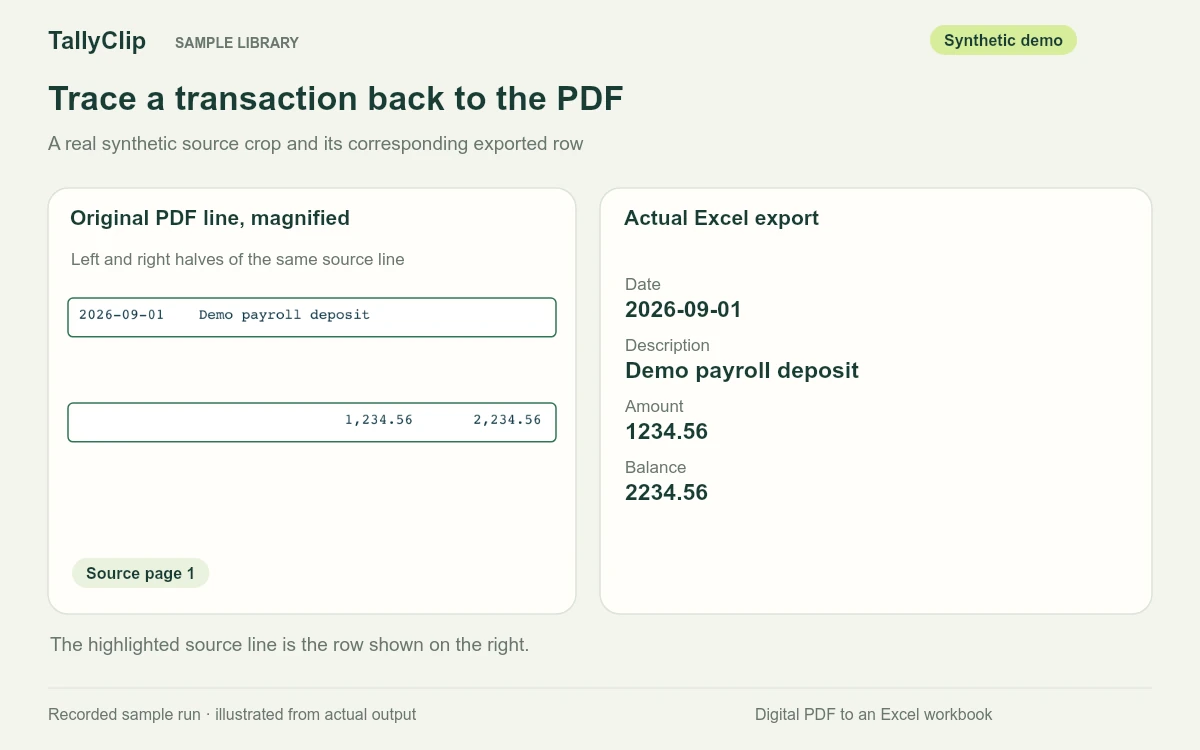
Follow a transaction back to the source.
Use the original statement to check a row’s date, description, and amount. This constructed demo pairs a source line with the row produced from it.
When a field is incomplete or a processing warning appears, compare it with your original and make any corrections in the downloaded workbook.
What your Excel workbook includes
Structured transactions
Date, Description, Reference, Amount, Type, Balance, and Computed Balance in clean columns.
Visible balance checks
Compare the source Balance with Computed Balance where continuous amounts and a source balance are available.
Clear amount direction
Amount is non-negative; Type identifies debit or credit when the direction is available.
Missing values stay empty
Unavailable references, amounts, or balances stay blank rather than becoming invented values.
Merged batch exports
Combine selected, completed statements using the same seven columns. Account labels are not included, so select files you intend to use together.
Digital and scanned PDFs
Work from digital statements or readable English scans, then check the downloaded rows against your original.
Check the available balances
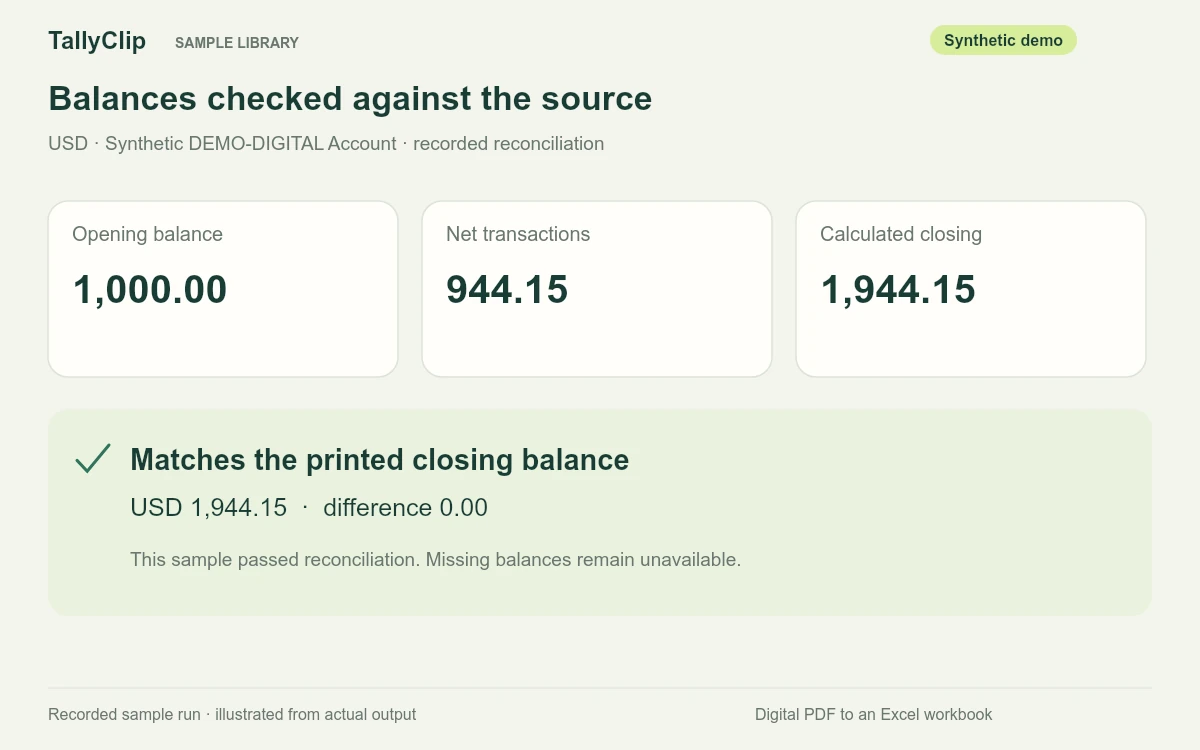
Compare the statement with the transaction totals.
Opening and closing balances provide another way to review the extracted rows. Check the calculated result against the printed amounts when the statement provides them.
Missing balances remain unavailable. A passed balance check does not prove that every date, description, or amount is correct.
Choose what fits your records
Three Ways to Get Bank Statement Data Into Excel
Start with the records you have. Choose the route that fits your workflow.
Direct from your bank
Bank download
Use your bank’s export when it includes the history and columns you need.
For accounts you can access.
For ongoing bookkeeping
Connected bank feed
Bring supported bank activity into your accounting ledger for ongoing bookkeeping.
Availability depends on your bank and platform.
With TallyClip
PDF conversion
Work from statement archives, client PDFs, or readable English scans.
Keep your original statement for comparison with the downloaded file.
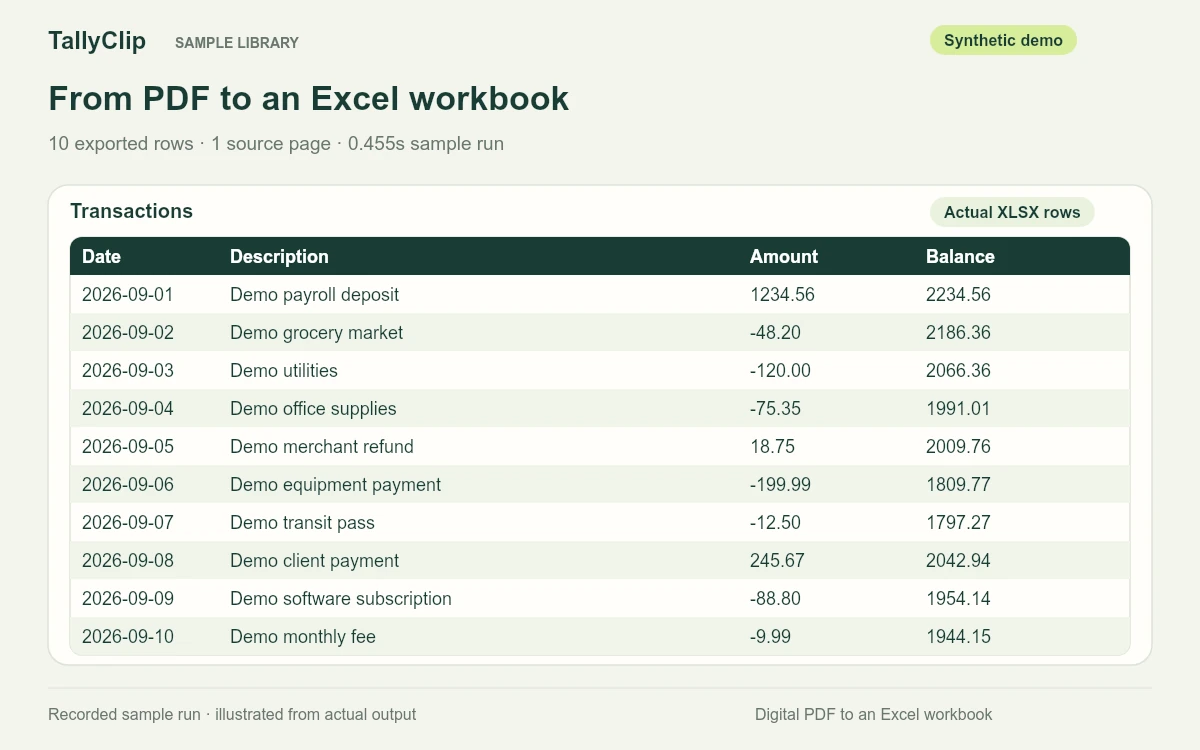
See the exported workbook.
Inspect the demo output’s transaction columns and available balances before trying your own statement.
GENERATED RESULTS · SYNTHETIC SAMPLES
From a sample statement to Excel
See this PDF bank statement to Excel converter working with digital text, a scan, separate currencies, and multiple pages.
Every source file was created for this demo. No customer uploads appear here. Sample processing times are measured local extraction-and-export runs, not speed guarantees. These dated samples retain an earlier export format; current Excel and CSV downloads use seven columns.
Digital PDF
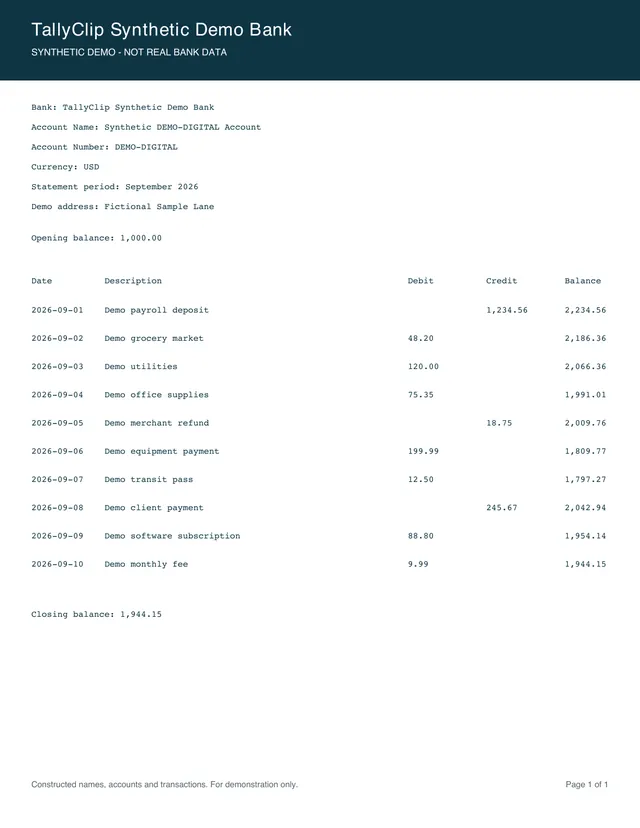
Digital PDF to an Excel workbook
Ten transaction rows retain their dates, signed amounts and source balances in this PDF bank statement.
- Source pages
- 1
- Output rows
- 10
- Sample run
- 0.455 s
| Date | Description | Amount | Balance |
|---|---|---|---|
| 2026-09-01 | Demo payroll deposit | 1234.56 | 2234.56 |
| 2026-09-02 | Demo grocery market | -48.20 | 2186.36 |
| 2026-09-03 | Demo utilities | -120.00 | 2066.36 |
| 2026-09-04 | Demo office supplies | -75.35 | 1991.01 |
| 2026-09-05 | Demo merchant refund | 18.75 | 2009.76 |
Converted with TallyClip and checked against the exported file. Generated 2026-10-13. Empty cells stay empty in the export. Earlier-version export; current downloads use seven columns.
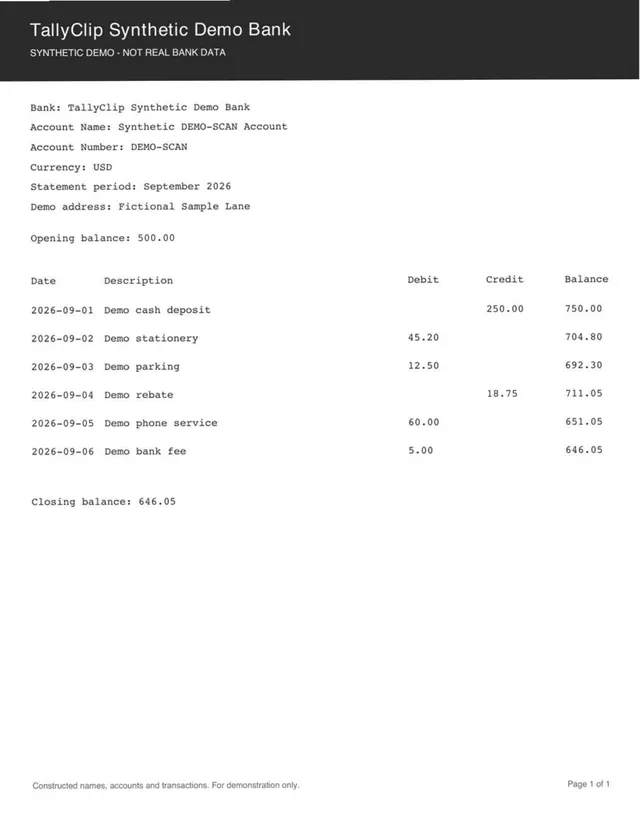
Scanned PDF · slight tilt
A tilted scan through English OCR
An image-only English statement is rasterized at 120 dpi, lightly blurred and tilted 0.20 degrees before local OCR.
- Source pages
- 1
- Output rows
- 6
- Sample run
- 1.395 s
| Date | Description | Amount | Balance |
|---|---|---|---|
| 2026-09-01 | Demo cash deposit | 250.00 | 750.00 |
| 2026-09-02 | Demo stationery | -45.20 | 704.80 |
| 2026-09-03 | Demo parking | -12.50 | 692.30 |
| 2026-09-04 | Demo rebate | 18.75 | 711.05 |
| 2026-09-05 | Demo phone service | -60.00 | 651.05 |
Converted with TallyClip and checked against the exported file. Generated 2026-10-13. Empty cells stay empty in the export. Earlier-version export; current downloads use seven columns.
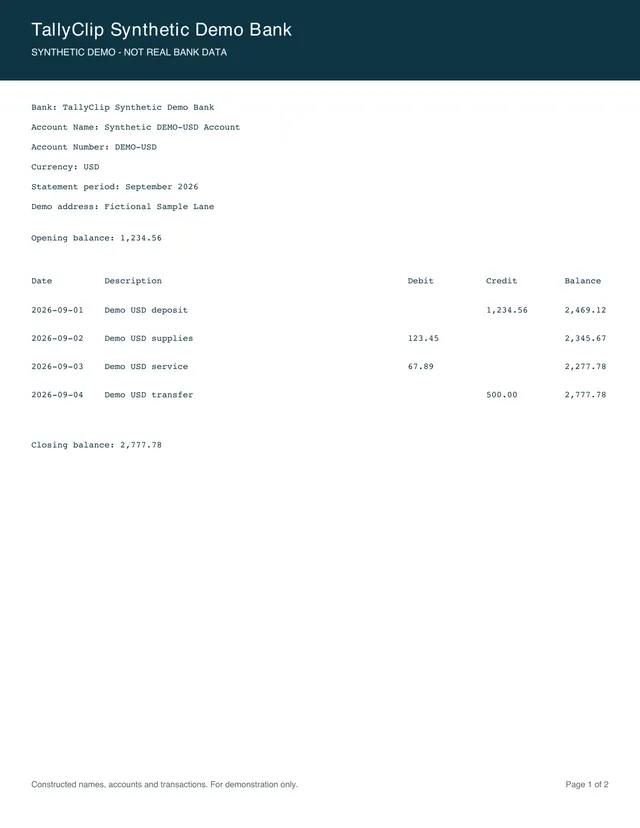
USD + EUR · 2 pages
Two currency sections, kept separate
Separate USD and EUR accounts use US-style thousands separators and decimal points without combining their balances.
- Source pages
- 2
- Output rows
- 8
- Sample run
- 0.009 s
| Date | Description | Amount | Currency | Balance |
|---|---|---|---|---|
| 2026-09-01 | Demo USD deposit | 1234.56 | USD | 2469.12 |
| 2026-09-02 | Demo USD supplies | -123.45 | USD | 2345.67 |
| 2026-09-03 | Demo USD service | -67.89 | USD | 2277.78 |
| 2026-09-04 | Demo USD transfer | 500.00 | USD | 2777.78 |
| 2026-09-01 | Demo EUR invoice | -234.56 | EUR | 2111.11 |
Converted with TallyClip and checked against the exported file. Generated 2026-10-13. Empty cells stay empty in the export. Earlier-version export; current downloads use seven columns.
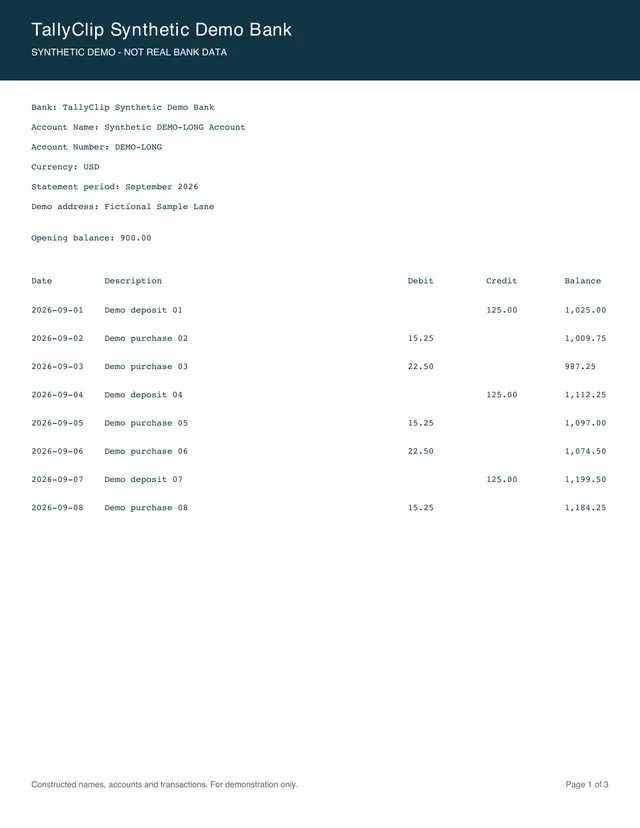
Long PDF · 3 pages
A three-page transaction statement
Repeated page headers are excluded while all 24 transactions retain the correct source page.
- Source pages
- 3
- Output rows
- 24
- Sample run
- 0.010 s
| Date | Description | Amount | Source Page |
|---|---|---|---|
| 2026-09-01 | Demo deposit 01 | 125.00 | 1 |
| 2026-09-02 | Demo purchase 02 | -15.25 | 1 |
| 2026-09-03 | Demo purchase 03 | -22.50 | 1 |
| 2026-09-04 | Demo deposit 04 | 125.00 | 1 |
| 2026-09-05 | Demo purchase 05 | -15.25 | 1 |
Converted with TallyClip and checked against the exported file. Generated 2026-10-13. Empty cells stay empty in the export. Earlier-version export; current downloads use seven columns.
Try your own statement
Upload a PDF, download Excel or CSV directly, and check the file against your original. Your files stay in your private workspace.
Samples last generated . Synthetic examples demonstrate these files only; results vary with source quality.
Monthly or annual plans
Choose your page allowance
10 pages per UTC day for 10 consecutive days from your first accepted upload. Downloads included.
Starter
For independent bookkeepers
$14.50/ month
$174 billed annually
$34850% off · Save $174 a year
500 pagesevery month
- Excel, CSV & accounting file exports
- Batch uploads & merged Excel/CSV downloads
- Direct downloads & available balance checks
- Only converted pages use credits
- Private file storage
Business
For growing accounting teams
$24.50/ month
$294 billed annually
$58850% off · Save $294 a year
1,500 pagesevery month
- Excel, CSV & accounting file exports
- Batch uploads & merged Excel/CSV downloads
- Direct downloads & available balance checks
- Only converted pages use credits
- Private file storage
Enterprise
For high-volume finance operations
$44.50/ month
$534 billed annually
$1,06850% off · Save $534 a year
5,000 pagesevery month
- Excel, CSV & accounting file exports
- Batch uploads & merged Excel/CSV downloads
- Direct downloads & available balance checks
- Only converted pages use credits
- Private file storage
Prices in USD, plus applicable taxes. Plans renew automatically until canceled. Annual plans are paid upfront; page allowances renew monthly. Unused pages don’t roll over. Billing terms · Privacy policy
A few useful answers
Frequently asked questions
Formats, free downloads, and the checks that help you review your data.
How we handle your dataWhat is included in the free plan?
Guests and free accounts can process up to 10 pages per UTC day for 10 consecutive days from the first accepted upload. Daily page usage resets at 00:00 UTC. Full results and supported downloads are included, with no separate confirmation required. When the daily allowance is used, new uploads wait until the next reset; files already processed within the allowance remain downloadable while the free period is active. After the free period ends, a paid plan is needed to process or download files. Download within the document retention period.
Can I convert a PDF bank statement to Excel without Excel installed?
Yes. Upload your statement in the browser, then download the .xlsx workbook. Excel does not need to be installed for the conversion. To open or edit the downloaded workbook, use Excel or another spreadsheet application that supports .xlsx files.
How do I convert a PDF bank statement to Excel?
Select or drop a PDF to start conversion automatically. Follow upload and extraction progress, download the completed workbook, then check its rows against the original statement. Unlock encrypted PDFs before uploading. Guests and free accounts can process 10 pages per UTC day for 10 consecutive days from the first accepted upload, with complete results and downloads included. Guests upload one PDF at a time, up to 10 MB and the available daily page allowance. The workbook contains one Transactions sheet with seven columns; unfamiliar layouts may need closer review in your spreadsheet application.
Is this the same as a bank statement converter PDF to Excel?
Yes. TallyClip converts PDF bank statements into an Excel workbook with seven transaction columns, available balance checks, and batch uploads. Completed results can be downloaded directly; keep your original statement to verify the file.
Does it work for scanned bank statements?
Readable English scanned PDFs are supported through OCR. You do not need to OCR them separately first. Low resolution, skew, handwriting, or unclear text can reduce extraction quality, so compare the downloaded rows with your original. OCR support for other languages is not promised.
How accurate is the bank statement to Excel conversion?
We have not published a measured field-level accuracy rate. Compare the downloaded transaction rows with your original and investigate any processing warnings. Balance checks help identify differences when printed balances are available, but a passed check does not prove every field is correct. Missing balances remain unavailable or require review.
Can I convert multiple bank statements to Excel at once?
Registered accounts can upload up to 50 files per batch, with a 100 MB total limit; each file can be up to 50 MB and 100 pages. Your page credits also apply. Merge selected completed results into a workbook. Free accounts are also subject to their remaining daily page allowance and 10-day access period. Guests can upload one PDF at a time.
Can Excel open a PDF bank statement by itself?
Some Excel versions offer PDF data import. Availability depends on your version and platform, and the tables may need cleaning or joining across pages. Scans can require OCR. Compare the imported rows with the original statement and verify balances before using the data.
Should I just download a CSV from my bank instead?
If the bank gives you the history and columns you need, its CSV download can be a practical first option. Available history and formats vary by bank and account. Work from PDFs when you have statement archives, client-sent documents, or records that are not available through a suitable bank export.
What about CSV instead of Excel?
CSV is also an available export format in TallyClip. Choose CSV when a destination needs a text table, and check its required fields and import rules. Free users can download files processed within the daily allowance while their 10-day free access remains active. A separate confirmation step is not required.
What is the best tool to convert PDF bank statements to Excel?
Choose based on your own documents: readable scan support, available transaction and balance columns, direct downloads, processing warnings, and the export format you need. Use the free daily allowance to convert your document, download the result, and compare it with the original to assess whether it fits your workflow.
More ways to use your transactions
Choose your export format
Use Excel for a formatted Transactions sheet or CSV for the same seven columns as text. Accounting formats have separate requirements.
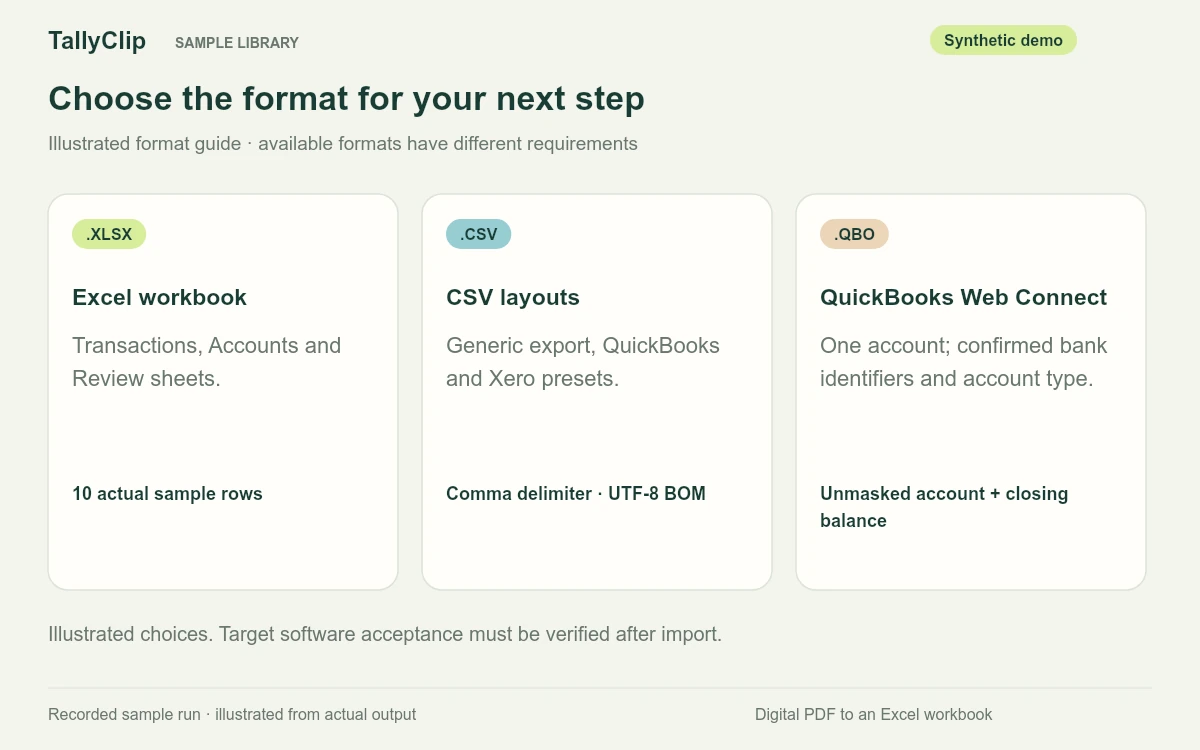
Start with your document.
Upload a statement, download its transactions, and check the file before using it in your next tool. QBO and other accounting formats require the relevant account details.
Convert to Excel freeCSV export format
Use a UTF-8 text table with a non-negative Amount and debit or credit Type. Check column mapping before importing.
Explore CSV exportQuickBooks file import
Review account details and use the supported QBO file workflow for your QuickBooks edition.
Explore QuickBooks exportsAll supported formats
Download the format you need and compare its transactions with your original statement before use.
Explore the bank statement converterPrefer a blank starting point?
Download an Excel statement template.
This earlier-version blank template includes Date, Description, Amount, and Balance. Current conversions use seven transaction columns. Fill the template manually, or upload a statement for a current-format download.