
A consistent column structure
CSV includes Date, Description, Reference, Amount, Type, Balance, and Computed Balance. The same columns are used for Excel downloads.
BANK STATEMENT TO CSV
One row per transaction. Standard columns. UTF-8.
Turn PDF statements into a text table you can inspect before importing. Extract transactions, download seven columns, and check the file against your original statement.
10 pages per UTC day for 10 consecutive days from your first accepted upload. Full results and supported downloads included.
PDF · JPG · PNG
Up to 10 MB · 10 pages · one file without an account
Select a file to start conversion automatically.
Loading extraction settings…
10 free pages per UTC day for 10 days from your first accepted upload. Downloads included.
Converting several statements? Sign up to TallyClip
No bank login required. Unlock encrypted PDFs before uploading. Download the CSV when processing finishes, then check it against your original before importing.
WHAT YOU GET
Keep transaction fields explicit, download your file directly, and prepare its columns for your destination.
CSV includes Date, Description, Reference, Amount, Type, Balance, and Computed Balance. The same columns are used for Excel downloads.
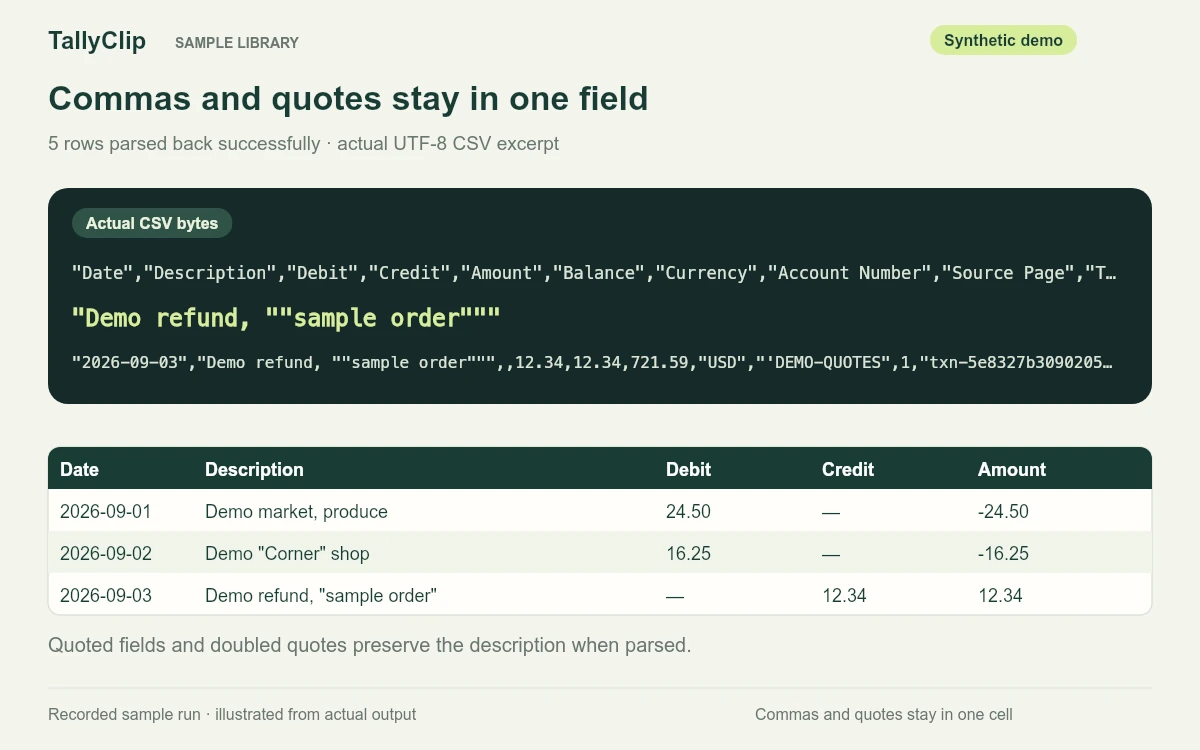
Text fields are quoted, embedded quotes are doubled, and multiline descriptions remain inside their field. Read the file with a CSV importer.
Exported text preserves Unicode characters such as Café and 東京. UTF-8 encoding describes the file output; readable English is the supported local OCR language.
Amount is non-negative. Type identifies debit or credit when that direction is available. Convert it to signed amounts if your import template requires them.
Balance preserves the source value. Computed Balance uses a source balance and continuous transaction amounts; missing information stays blank.
Registered users can combine selected completed results into one seven-column CSV. The file does not include account labels, so select statements you intend to use together.
Amount is non-negative, and Type identifies debit or credit. Reference and Balance stay blank when unavailable; Computed Balance requires a source balance and continuous amounts.
YOUR DOWNLOAD FORMAT
Select Download CSV as soon as processing finishes. Every standard download uses the same seven columns.
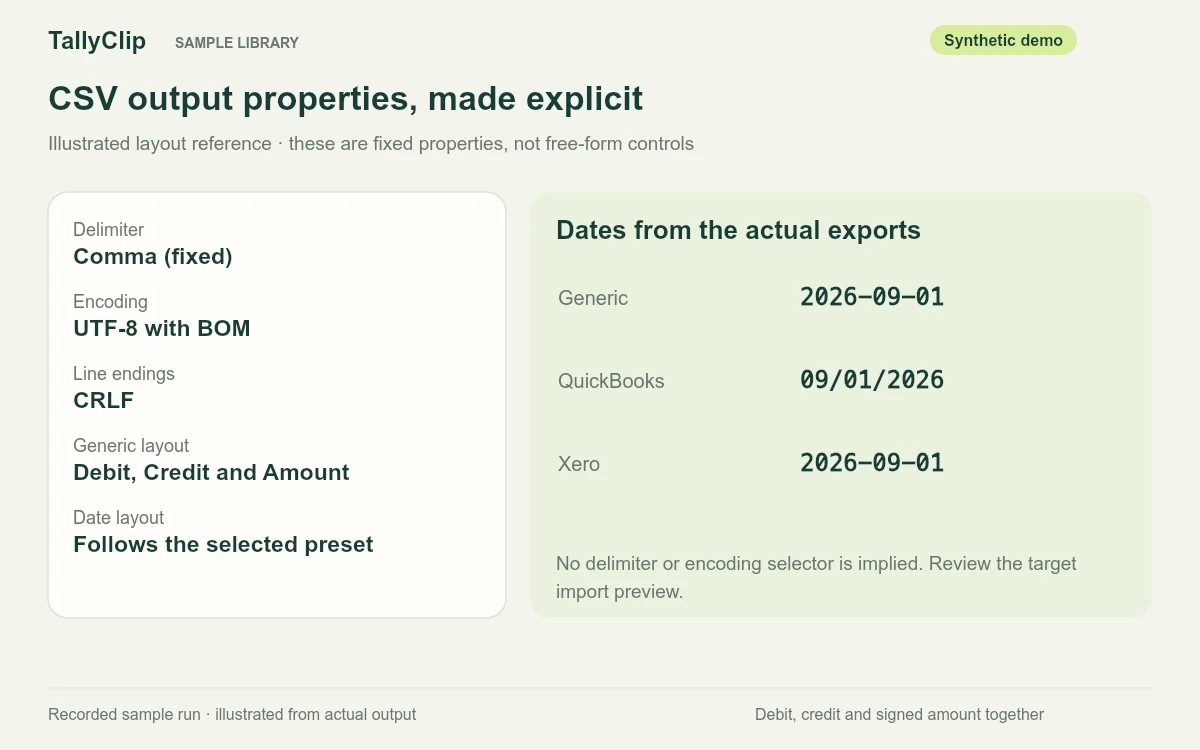
Comma separation, UTF-8 with a byte-order mark, and CRLF record endings are fixed. Text fields are quoted, and embedded double quotes are doubled.
FOUR STEPS
Convert the document, download the CSV, then inspect its rows against your original statement.
Choose a digital PDF or readable English scan. Processing starts automatically, with progress shown in the upload panel.
Bring dates, descriptions, amounts, and available balances into rows. The completed result provides direct download buttons and any processing warnings.
Select Download CSV in the completed result. The file uses seven transaction columns; no preview or confirmation step is required.
Check dates, amount direction, available balances, transaction count, and text encoding against your original. Make any corrections in the downloaded file before importing.
CHOOSE YOUR STARTING POINT
Use the records you can access. A download, a bank feed, and a PDF conversion serve different needs.
Start with the export you have
Use a bank download when its date range and transaction fields already fit your workflow. Check its headers, amount signs, and import mapping.
A useful first option when the records are available.For ongoing bookkeeping
Bring supported bank activity into your accounting platform. Review the history available through the connection and avoid importing overlapping transactions.
Availability depends on the bank, account, and platform.For statement archives
Work from client PDFs, older statements, or readable English scans. Download extracted rows and retain your original statement for later checks.
Choose when your starting point is a PDF statement.GENERATED RESULTS · SYNTHETIC SAMPLES
Inspect CSV quoting, amount columns, source filenames, and available balances in files generated by the converter.
Every source file was created for this demo. No customer uploads appear here. Sample processing times are measured local extraction-and-export runs, not speed guarantees. These dated samples retain an earlier export format; current Excel and CSV downloads use seven columns.
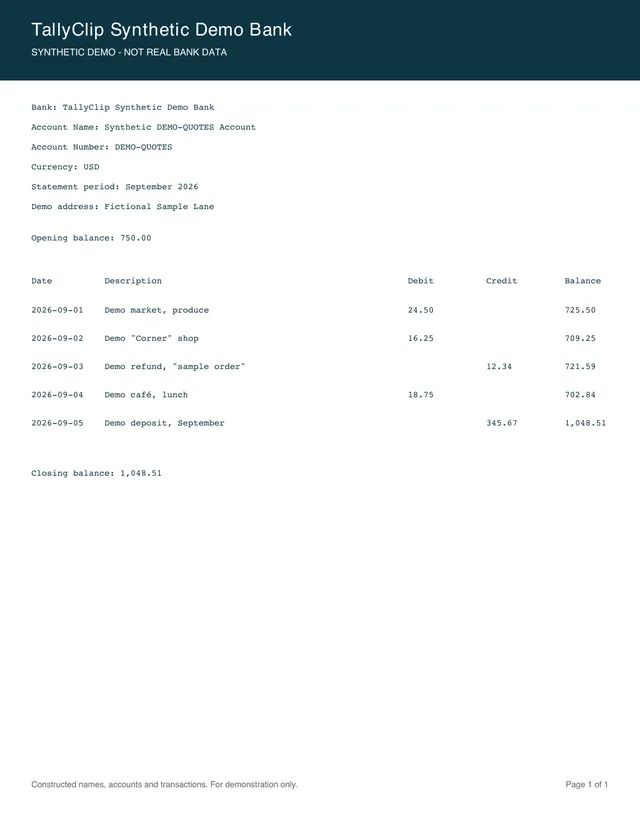
Descriptions containing commas, double quotes and an accented character survive extraction and RFC 4180 CSV quoting.
| Date | Description | Amount | Balance |
|---|---|---|---|
| 2026-09-01 | Demo market, produce | -24.50 | 725.50 |
| 2026-09-02 | Demo "Corner" shop | -16.25 | 709.25 |
| 2026-09-03 | Demo refund, "sample order" | 12.34 | 721.59 |
| 2026-09-04 | Demo café, lunch | -18.75 | 702.84 |
| 2026-09-05 | Demo deposit, September | 345.67 | 1048.51 |
Converted with TallyClip and checked against the exported file. Generated 2026-10-13. Empty cells stay empty in the export. Earlier-version export; current downloads use seven columns.
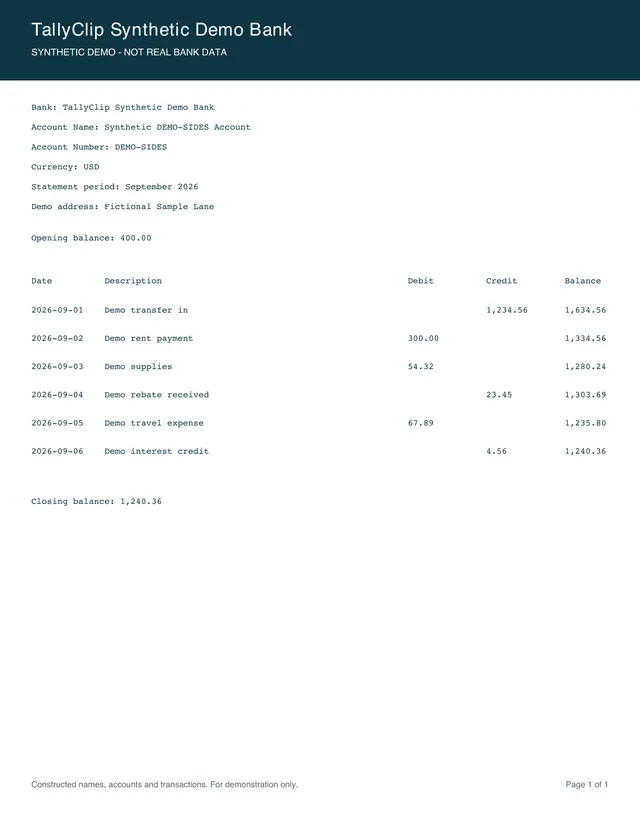
Blank debit or credit cells retain their direction; the generic CSV also includes a signed Amount column.
| Date | Description | Debit | Credit | Amount |
|---|---|---|---|---|
| 2026-09-01 | Demo transfer in | — | 1234.56 | 1234.56 |
| 2026-09-02 | Demo rent payment | 300.00 | — | -300.00 |
| 2026-09-03 | Demo supplies | 54.32 | — | -54.32 |
| 2026-09-04 | Demo rebate received | — | 23.45 | 23.45 |
| 2026-09-05 | Demo travel expense | 67.89 | — | -67.89 |
Converted with TallyClip and checked against the exported file. Generated 2026-10-13. Empty cells stay empty in the export. Earlier-version export; current downloads use seven columns.
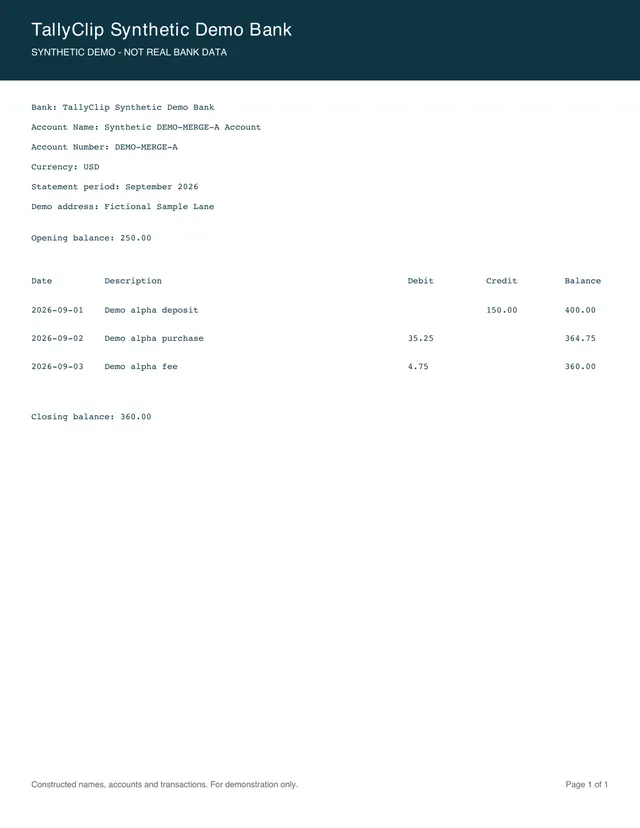
Six transactions from two synthetic files retain Source Filename, document ID, version and account ID in one generic CSV.
| Date | Description | Amount | Source Filename |
|---|---|---|---|
| 2026-09-01 | Demo alpha deposit | 150.00 | source-a.pdf |
| 2026-09-02 | Demo alpha purchase | -35.25 | source-a.pdf |
| 2026-09-03 | Demo alpha fee | -4.75 | source-a.pdf |
| 2026-09-01 | Demo beta receipt | 275.50 | source-b.pdf |
| 2026-09-02 | Demo beta supplies | -80.00 | source-b.pdf |
Converted with TallyClip and checked against the exported file. Generated 2026-10-13. Empty cells stay empty in the export. Earlier-version export; current downloads use seven columns.
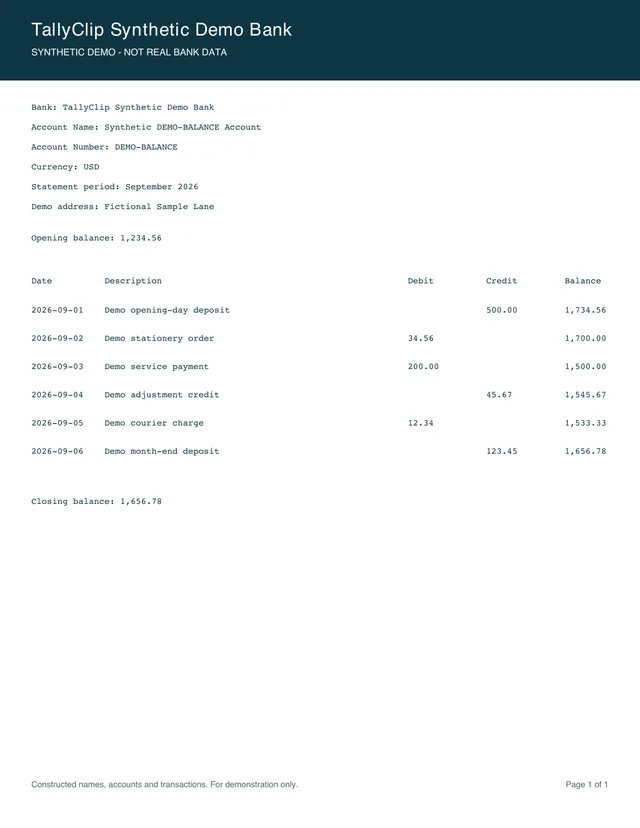
Opening balance plus signed amounts equals the source closing balance; every supplied running balance reconciles.
| Date | Description | Amount | Balance |
|---|---|---|---|
| 2026-09-01 | Demo opening-day deposit | 500.00 | 1734.56 |
| 2026-09-02 | Demo stationery order | -34.56 | 1700.00 |
| 2026-09-03 | Demo service payment | -200.00 | 1500.00 |
| 2026-09-04 | Demo adjustment credit | 45.67 | 1545.67 |
| 2026-09-05 | Demo courier charge | -12.34 | 1533.33 |
Converted with TallyClip and checked against the exported file. Generated 2026-10-13. Empty cells stay empty in the export. Earlier-version export; current downloads use seven columns.
Upload a PDF, download Excel or CSV directly, and check the file against your original. Your files stay in your private workspace.
Samples last generated . Synthetic examples demonstrate these files only; results vary with source quality.
COMBINE YOUR DOWNLOADS
Registered users can select 2–50 completed statements and download a merged CSV with the same seven columns. Rows stay in statement order, and computed balances restart for each account.
The file does not include source or account labels. Combine only statements you intend to use together, and check for overlapping periods before importing.
Start with your statementsIMPORT DESTINATIONS
Check the account, date format, and amount mapping in the destination’s preview. Use its current template when preparing an import.
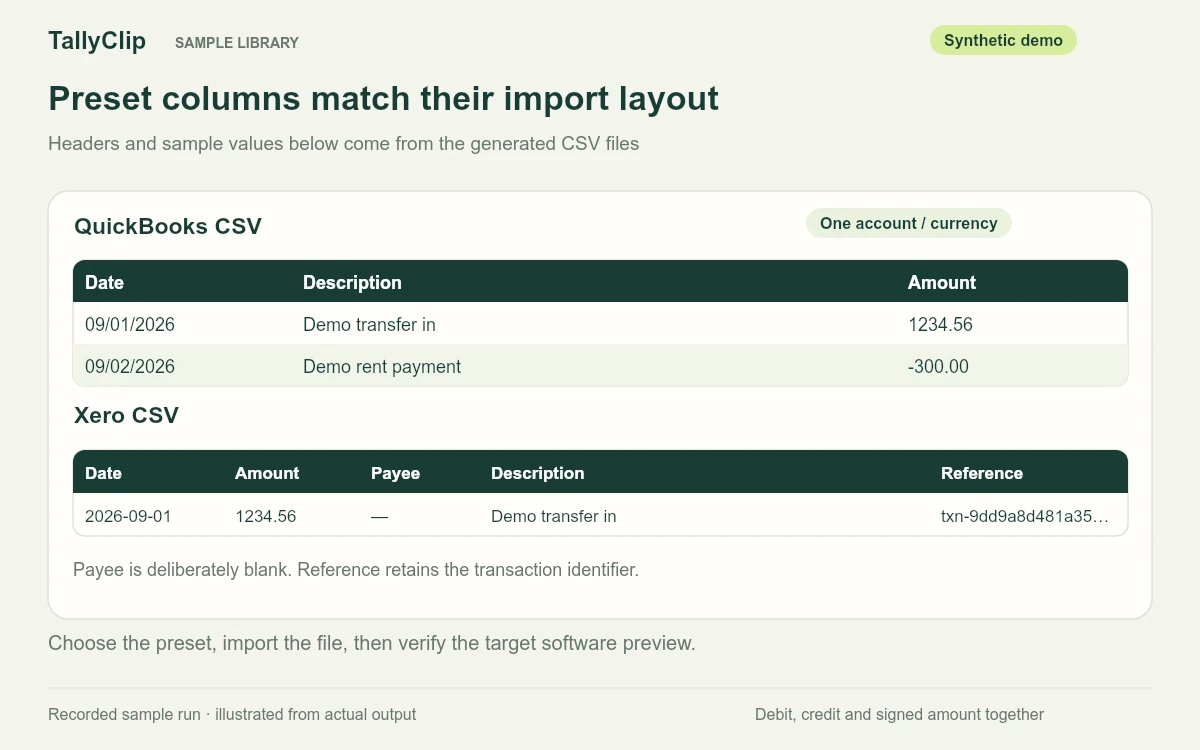
Date · Description · Amount
Intuit accepts three-column signed amounts or four-column Credit/Debit files. Prepare your downloaded file for one account and currency, using Type to produce the required amount signs or columns.
Confirm date format and money direction in the import preview.
Official import guide for QuickBooks OnlineDate · Amount · Payee · Description · Reference
Xero requires Date and Amount; the other fields add context. Prepare the required amount signs from Type and keep Reference empty where the statement provides none.
Income is positive and expenses negative; review the selected date format.
Official import guide for XeroDate · Description · Amount
Sage also offers Date, Description, Money in, Money out. Match its template order, use slash-separated dates, and keep descriptions non-empty and on one line.
Prepare the CSV against your Sage edition’s template; there is no Sage preset here.
Official import guide for Sage Accounting (UK)Map dates, descriptions, and amount fields
Choose an amount column type, encoding, and delimiter, then map file headers to Zoho fields. A signed Amount can be mapped with Single Column with Negative Values.
Review the mapping and preview; there is no dedicated Zoho preset here.
Official import guide for Zoho BooksImport the columns you need to review
Use File → Import → Upload, choose the import location, and select the separator. The downloaded CSV keeps its seven transaction fields in one table.
Inspect parsed dates, amounts, and identifiers before using the data.
Official import guide for Google SheetsPrepare one account and currency per accounting import. Check full dates and non-empty amounts, use Type to create the required signs or columns, and remove columns your destination does not accept.
BEFORE THE IMPORT
A clean table is a starting point. Apply this checklist to your file, compare it with the source, and inspect the destination’s import preview.
Confirm full dates and their order. The standard download uses DD-MMM-YYYY, for example 01-May-2024. Select the matching format in the destination.
Compare deposits and withdrawals with the source. Amount is non-negative and Type marks debit or credit; apply the sign or column mapping your importer requires.
Compare the transaction totals and any running balances with the printed opening and closing balances. A missing balance cannot be treated as a passed check.
Compare parsed transaction records with the statement and check overlapping periods. Count CSV records, not physical text lines: a quoted description can contain a newline.
Import as UTF-8 with a comma separator. Inspect accents, non-Latin text, quoted descriptions, and references after your destination has parsed the file.
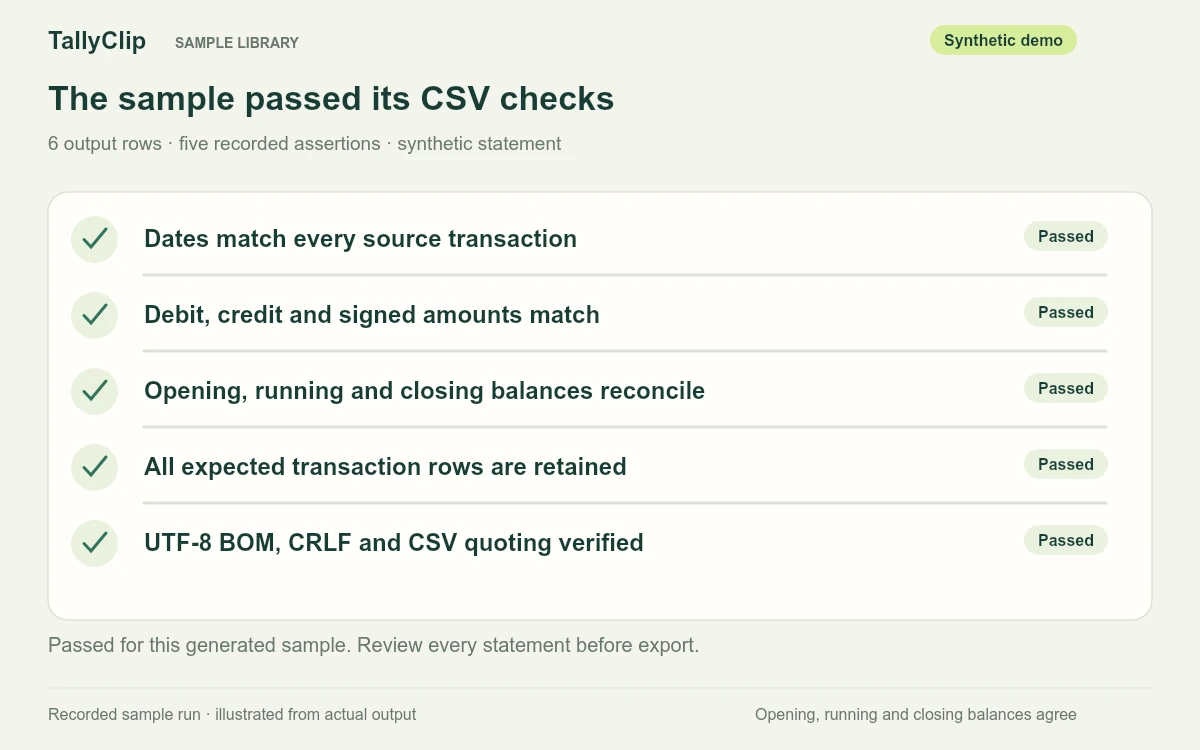
The demo records checks for a constructed sample. Your file still needs its own review; unavailable source balances remain unavailable.
MONTHLY OR ANNUAL PLANS
10 pages per UTC day for 10 consecutive days from your first accepted upload. Full results and supported downloads included.
For independent bookkeepers
$174 billed annually
$34850% off · Save $174 a year
For growing accounting teams
$294 billed annually
$58850% off · Save $294 a year
For high-volume finance operations
$534 billed annually
$1,06850% off · Save $534 a year
Prices in USD, plus applicable taxes. Plans renew automatically until canceled. Annual plans are paid upfront; page allowances renew monthly. Unused pages don’t roll over. Billing terms · Privacy policy
THE DETAILS
Understand the columns and limits, and review the downloaded file before it reaches your ledger.
See the full bank listChoose CSV for a plain text table you can map to an importer or data workflow. Choose Excel for a formatted Transactions sheet with real date and numeric cells. Both downloads use the same seven columns; CSV stores them as plain text.
If your bank provides the history and columns you need, use that download first. PDF conversion is useful for statement archives, client-sent records, or periods that are unavailable in a suitable bank export. Review both sources for gaps and duplicates.
The standard CSV contains a non-negative Amount and a Type column with debit or credit when the direction is available. There are no separate Debit and Credit columns. Prepare signed amounts or separate columns in your spreadsheet if your importer needs them.
The standard CSV uses DD-MMM-YYYY, such as 01-May-2024. Confirm your destination’s date format and adjust the downloaded file if its template requires another format. Missing or incomplete dates stay blank.
Text fields are enclosed in double quotes, and embedded double quotes are doubled. A description containing a comma or newline stays in its quoted field when read by a CSV parser. Some destinations, including Sage Accounting, require single-line descriptions, so prepare those fields for the target template.
Registered accounts can upload up to 50 files per batch, subject to file and page limits. Selected completed results can be merged into a seven-column CSV. Source filenames and account identifiers are not included; combine only files you intend to use together and avoid overlapping periods. Guests upload one PDF at a time.
Readable English scanned PDFs are supported through OCR. Low resolution, skew, unclear text, or handwriting can affect extraction, so compare the rows with the source. Support for every bank layout or OCR language is not guaranteed.
Guests and free accounts can process up to 10 pages per UTC day for 10 consecutive days from their first accepted upload. Daily usage resets at 00:00 UTC. Full results and supported downloads are included while free access is active; download within the document retention period. A paid plan is needed after free access ends.
Prepare the downloaded CSV to match the destination’s template for one account and currency. Use Type to map money in and money out, and check dates, amounts, column mapping, and duplicates in the destination’s preview. TallyClip provides an export file, not a direct bank connection; successful acceptance by your specific account must be verified there.
READY FOR THE NEXT STEP
Start with a PDF, download your CSV, and check it against the original before use.
Convert to CSV free