
CSV is the lingua franca of financial data. Every accounting platform — QuickBooks, Xero, Sage, Zoho Books, and custom spreadsheets — can import a CSV file. But a CSV is only as good as the data inside it. If the date column contains ambiguous values, or if debit and credit amounts are merged into a single unparseable string, the import will fail or produce garbage.
This article shows you how to get a clean CSV from a PDF bank statement and how to check the output before you rely on it.
Why CSV instead of Excel?
A CSV file is a plain-text representation of a table. It contains no formatting, no formulas, and no hidden metadata. That makes it the safest format for data transfer between systems. When you export to XLSX, Excel can silently apply number formats, convert text to dates, or strip leading zeros from account numbers. A CSV avoids most of these pitfalls — provided the underlying data is correct.
Converting with TallyClip
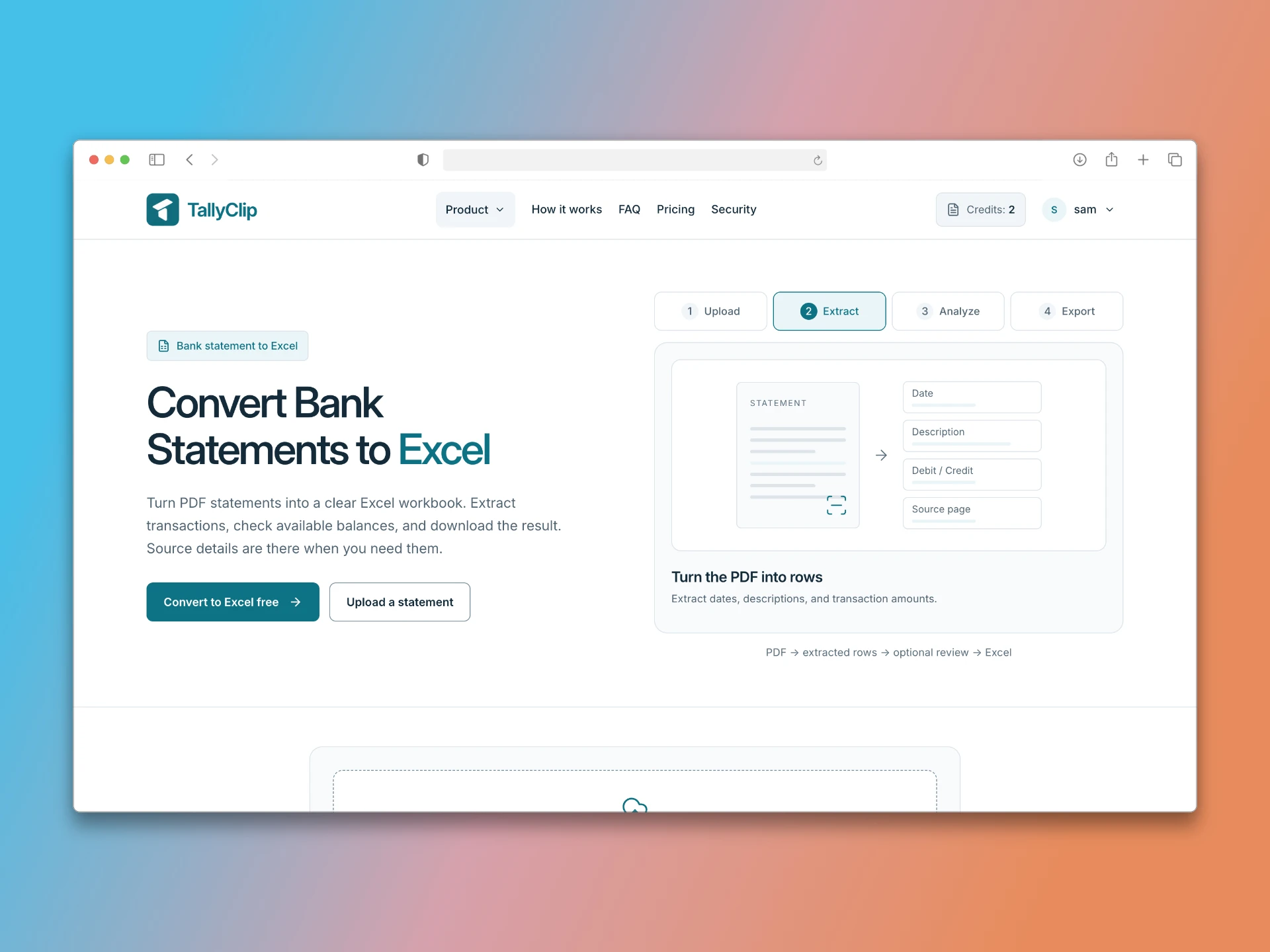
Upload your PDF to https://www.tallyclip.com/. TallyClip parses the transaction table and presents a preview. Select CSV as your export format. The output file contains one row per transaction with the following columns:
Column Content Date Transaction date, normalised to a consistent format Description Transaction narrative or merchant name Amount Signed amount (negative for debits, positive for credits) Balance Running balance after the transaction If your bank statement uses separate debit and credit columns, TallyClip can output those as separate columns instead of a single signed amount. Choose the layout that matches your target accounting system.
Checking the output: a five-point validation checklist
Do not trust any CSV export blindly. Run these checks before importing:
-
Date format consistency. Open the CSV in a text editor or spreadsheet. Are all dates in the same format? If your bank uses DD/MM/YYYY (common outside the US), verify that dates like 03/12/2025 are interpreted as 3 December, not 12 March. TallyClip normalises dates during extraction, but you should confirm the output matches your expectation.
-
Amount signs. Check a known debit — a payment you made — and confirm the amount is negative (or in the debit column, depending on your chosen layout). Check a known credit — a deposit — and confirm it is positive. Sign errors are the single most common cause of failed bank statement imports.
-
Running balance continuity. If your export includes a balance column, verify that the balance changes correctly from row to row. The formula is: previous balance + amount = new balance. Scan the first few and last few rows. If the balance jumps unexpectedly, a transaction may have been dropped or duplicated.
-
Row count match. Count the number of transaction rows in the original PDF and compare it to the number of rows in the CSV. A mismatch means the converter either missed a row or created a false one. Multi-line descriptions and transactions that span a page break are the usual culprits.
-
Encoding. Open the CSV in a text editor. If your statement contains accented characters or non-Latin scripts, check that they appear correctly. TallyClip outputs UTF-8 CSV, which is compatible with Excel, Google Sheets, and all major accounting software.
Importing the CSV into accounting software
Most accounting platforms expect a specific column structure. QuickBooks Online, for example, accepts either three columns (Date, Description, Amount) or four columns (Date, Description, Credit, Debit). Xero expects Date, Amount, Payee, Description, Reference. Before importing, strip any currency symbols from amount fields and remove running-balance columns if the target system does not need them.
Key takeaways
Use CSV for maximum compatibility across accounting platforms.
Always validate date formats, amount signs, balance continuity, row count, and encoding before importing.
TallyClip normalises dates and signs during conversion, but a quick manual check catches edge cases.
A clean CSV saves hours of cleanup at month-end.