
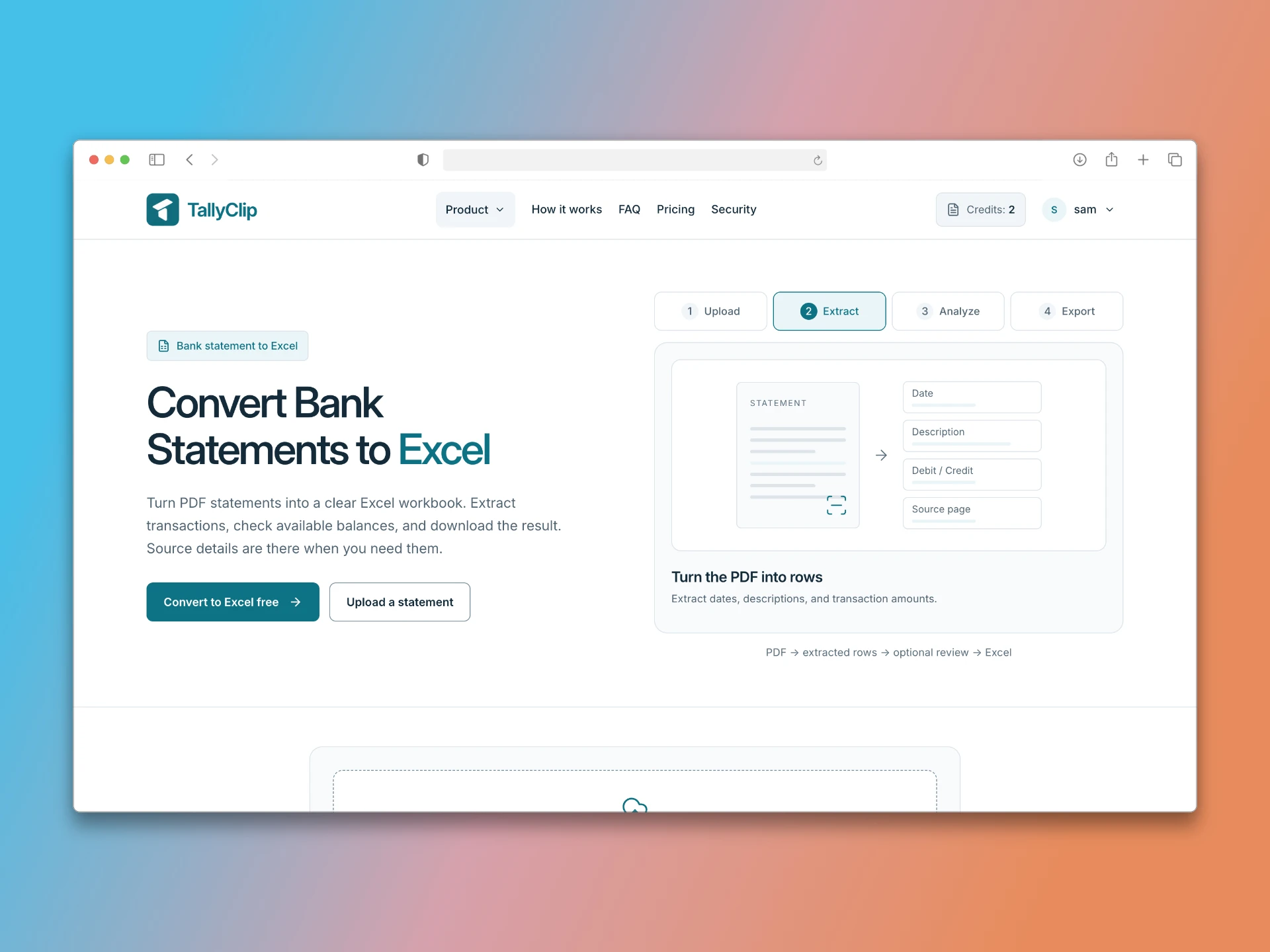
Password-protected bank statements are becoming the norm. Chase, Bank of America, Wells Fargo, and TD Bank all offer encrypted PDF downloads. Some banks encrypt every emailed statement by default and send the password through a separate channel. This protects your financial data during transmission, but it creates a hurdle when you need to convert the statement to Excel or CSV.
Why banks encrypt statement PDFs
The password protects account numbers, transaction details, and balances if the PDF is intercepted during email delivery or stolen from an email account. For accountants managing multiple clients across different banks, this means every statement may arrive with a different password, sent via a different channel.
Three approaches to password-protected PDFs
Approach 1: Remove the password manually. Open the PDF in Adobe Acrobat or a similar tool, enter the password, and save an unencrypted copy. Then upload the unencrypted file to your converter. This works with any converter, but it creates a security risk: the unencrypted PDF remains on your computer or in your downloads folder.
Approach 2: Use a converter that accepts passwords. Some converters include a password field during upload. You provide the password, the tool decrypts the PDF in a secure environment, and the file is processed without creating an unencrypted local copy. This is the safer option.
Approach 3: Request an unencrypted statement. Your bank’s online portal may allow you to download a non-encrypted PDF. This is the simplest option if available, but not all banks offer it.
How TallyClip handles password-protected statements
TallyClip includes a password field in the upload interface. When you upload an encrypted PDF, you enter the password in the field provided. The file remains encrypted during transmission. The password is used only for in-memory decryption — it is not stored, logged, or used for any other purpose. The original encrypted PDF is never modified or written to disk in decrypted form.
If you do not know the password
Bank statement passwords are typically:
Your date of birth in DDMMYYYY format (e.g., 02011995)
The last four digits of your account number
A password you set when you enabled encryption
A one-time password sent via SMS when the statement was generated
Check the email or message that delivered the statement. If you cannot find the password, contact your bank or request a fresh, unencrypted PDF.
Security best practices
-
Never upload a password-protected PDF to a converter that does not explicitly support encrypted files.
-
If you remove the password manually, delete the unencrypted copy immediately after conversion.
-
Use a converter that processes files in memory and does not store them.
-
Avoid emailing unencrypted statements to yourself or others.
-
If you are an accountant processing client statements, use a converter with bank-level encryption and a clear data-retention policy.
Key takeaways
-
Password-protected bank statements are increasingly common.
-
You can remove the password manually, use a converter with password support, or download an unencrypted version from your bank.
-
TallyClip accepts encrypted PDFs and decrypts them in memory only — no unencrypted copies are created.
-
If you forget the password, check the statement delivery message or contact your bank.