
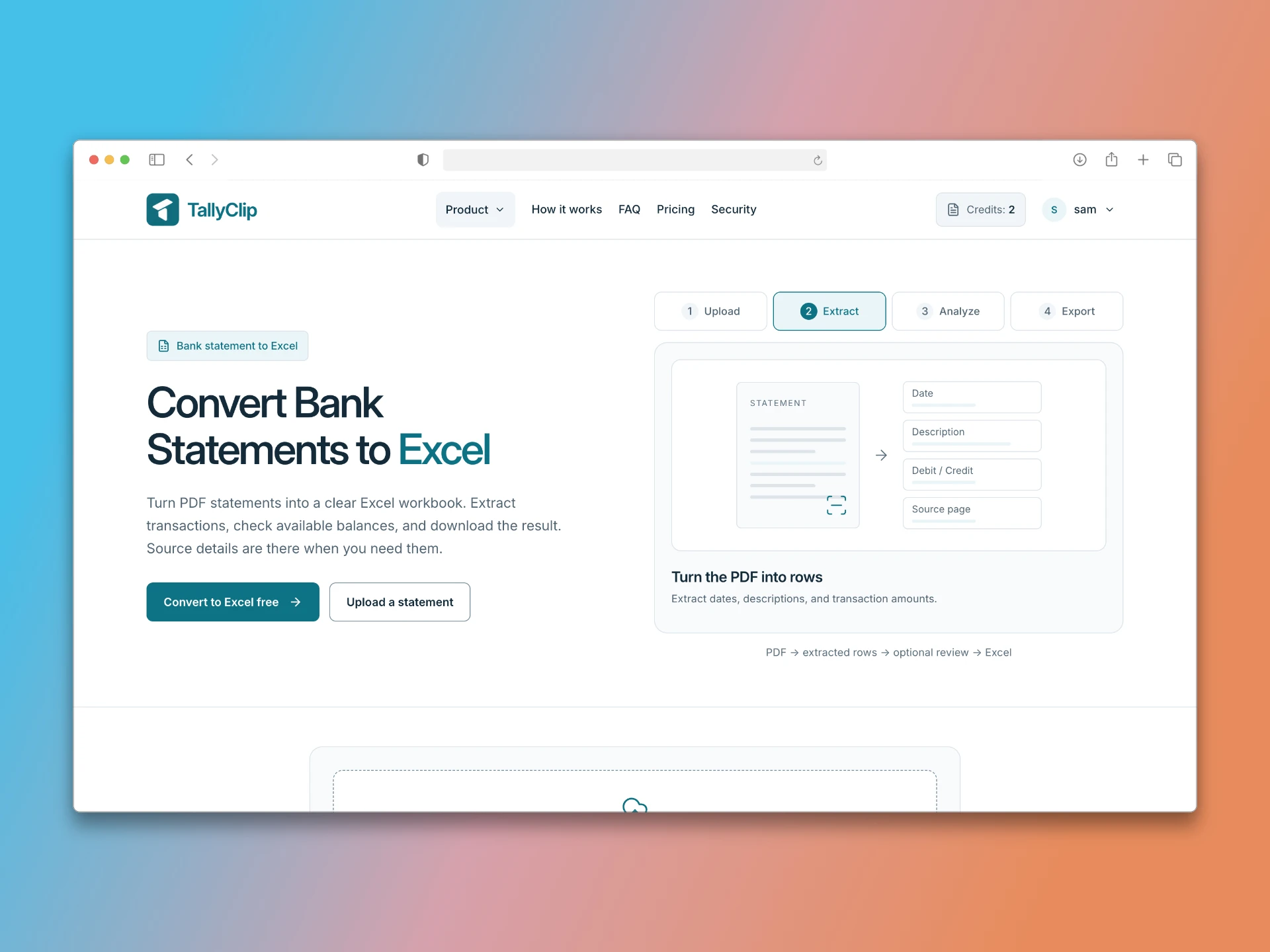
Open a typical bank statement PDF and you will see much more than transactions. There is a header with the bank’s logo and your account number. A summary section showing opening balance, total deposits, and total withdrawals. Interest calculation details. Disclosure text. A footer with page numbers and regulatory notices.
A good converter extracts the transaction table and ignores everything else. A poor converter either misses transactions or includes non-transaction rows in the output. This article explains how to tell the difference.
What counts as a transaction?
A transaction row has four defining characteristics:
A date — the transaction posting date
A description — merchant name or transaction narrative
An amount — either a single signed amount or separate debit/credit values
A running balance — the account balance after the transaction
If a row lacks a date and an amount, it is almost certainly not a transaction. Page headers, section titles, and disclosure text do not have these fields.
How TallyClip isolates the transaction table
TallyClip analyses the PDF layout and identifies the largest contiguous table that contains date-like and amount-like values in regular columns. It then:
Strips page headers and footers that repeat across pages
Groups wrapped descriptions that span multiple lines into a single row
Removes non-transaction rows such as section headings and summary lines
Detects the column structure — whether the statement uses a single amount column or split debit/credit columns
The result is a clean table with one row per transaction.
Content that should NOT appear in your converted output
If you see any of the following in your converted file, the extraction went wrong:
Opening balance / closing balance summary lines — these are statement metadata, not transactions
Page headers repeated as data rows — e.g., “Account Number: XXXX” appearing every 20 rows
Interest calculation detail rows — unless interest is posted as a transaction, these are informational
Disclosure or regulatory text — any row that contains prose instead of a date, description, and amount
Blank rows — page breaks can create empty rows in the output
Handling multi-page statements
Multi-page statements are the hardest case. The column headers repeat on every page, and a transaction that falls near a page break may be split across two pages. TallyClip handles this by detecting the repeating header pattern and removing subsequent occurrences, and by grouping transaction fragments that share the same date and description.
Verifying the extraction
After conversion, compare the row count in your output against the PDF. Count the transaction lines in the PDF — this is tedious but necessary for a first-time conversion with a new bank. If the counts match, the extraction is complete. If they do not, look for the following:
Missing rows — often caused by a transaction that was split across a page break
Extra rows — often caused by a wrapped description that was treated as a separate transaction
Merged rows — two transactions that were incorrectly combined into one
The balance continuity check is a faster alternative. If opening balance + total credits − total debits = closing balance, and the running balance column increments correctly, the extraction is almost certainly complete.
Key takeaways
-
A transaction row must have a date, description, amount, and ideally a running balance.
-
TallyClip isolates the transaction table and strips headers, footers, and summary content.
-
Multi-page statements require special handling for repeated headers and page-break splits.
-
Verify extraction completeness with a row count comparison or a balance continuity check.