
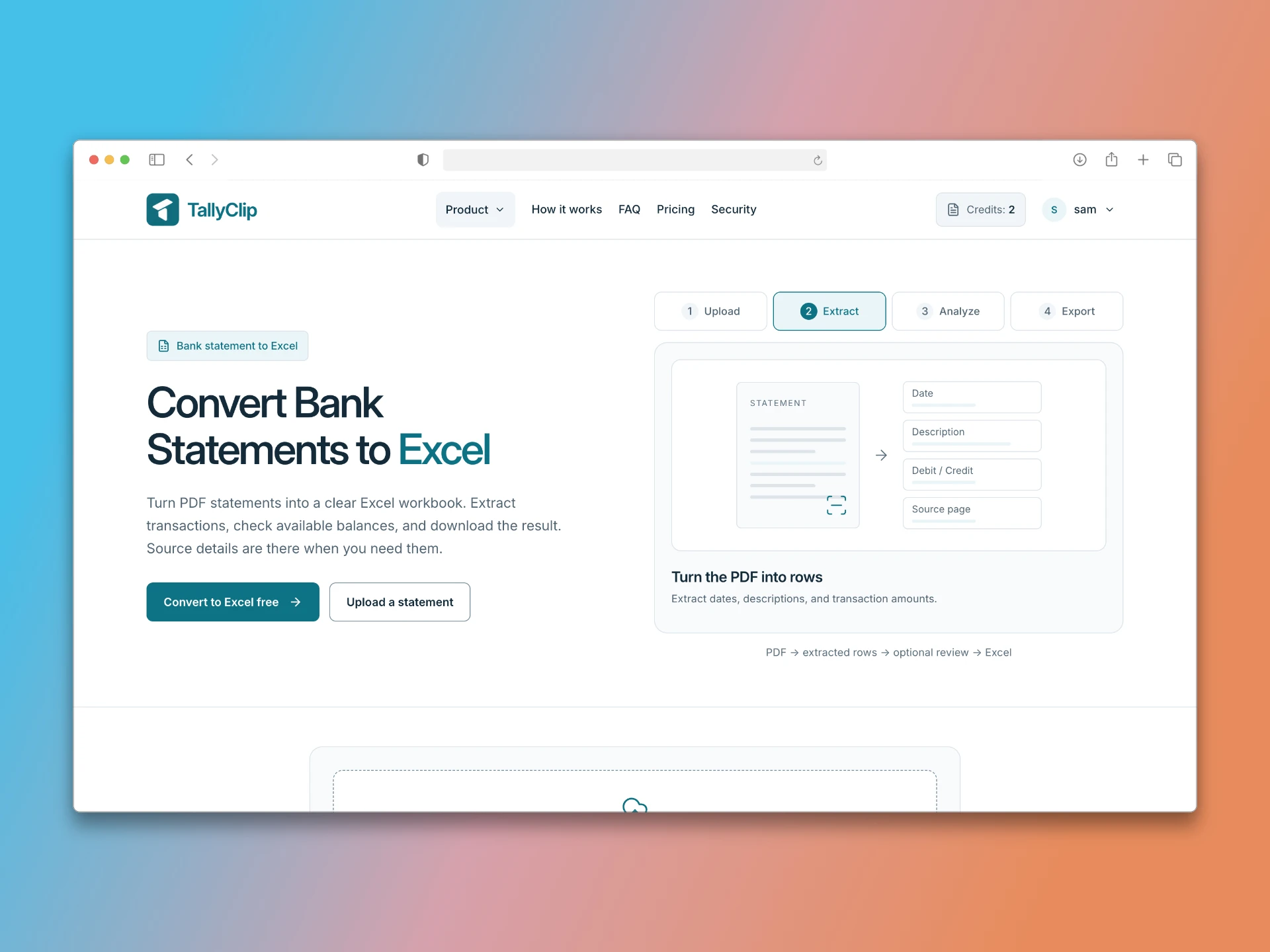
A converted bank statement is a table. Like any table, its usefulness depends on understanding what each column contains and how the columns relate to one another. This article breaks down the standard columns in a converted statement and explains how to interpret them correctly.
The six core columns
Transaction Date. This is the date the bank recorded the transaction. It may differ from the date you initiated the transaction — a cheque written on the 1st may not clear until the 5th. When reconciling, always use the bank’s transaction date, not the date from your own records.
The most common issue with this column is format ambiguity. A date like 03/12/2025 could mean 3 December or 12 March, depending on the bank’s convention. US banks typically use MM/DD/YYYY; most other countries use DD/MM/YYYY. TallyClip normalises dates during conversion, but if you are working with a manually created CSV, verify the format before relying on it.
Description. This is the transaction narrative — merchant name, payment reference, or a bank-assigned code. Descriptions in converted statements are often truncated or wrapped. A single transaction description might appear as two lines in the PDF, and if the converter treats them as separate rows, you get a false entry. TallyClip groups multi-line descriptions into one row during extraction.
Debit. Money leaving the account. In accounting terms, a debit to a bank account reduces the balance. When your bank statement shows a debit, it means a withdrawal, payment, or fee. Debits should be negative in a signed-amount column, or in a dedicated Debit column in a split-column layout.
Credit. Money entering the account. Deposits, refunds, and incoming transfers are credits. Credits increase the account balance. In a signed-amount layout, credits are positive numbers.
Balance. The running account balance after each transaction. This column is essential for verification. The formula is: previous balance + amount = new balance. If the balance does not update correctly from row to row, the conversion has a problem.
Source. Some converters add a Source column indicating which file or page a transaction came from. This is useful when you are merging multiple statements into one workbook and need to trace a row back to its origin.
Split debit/credit vs single amount column
Banks use two common layouts:
Single signed amount column. Each transaction has one amount. Debits are negative, credits are positive. Example:
Date Description Amount Balance 01/05/2025 Coffee Shop -4.50 1,245.50 01/06/2025 Salary Deposit +2,500.00 3,745.50 Split debit/credit columns. Debits and credits live in separate columns, and each row has a value in only one of them. Example:
Date Description Debit Credit Balance 01/05/2025 Coffee Shop 4.50 1,245.50 01/06/2025 Salary Deposit 2,500.00 3,745.50 When importing into accounting software, check which layout the software expects. QuickBooks Online, for example, accepts either format, but the column structure must match what you declare during import.
The balance continuity check
After conversion, verify that the balance column is internally consistent. Pick a starting balance, add the amount of the next transaction, and confirm the result matches the balance column for that row. Repeat for a few rows. If the balance is off, a transaction has been dropped, duplicated, or mis-signed.
This check catches more conversion errors than any other single validation step. TallyClip runs a balance verification automatically and flags rows where the running balance does not reconcile.
Common interpretation mistakes
Mistaking the value date for the transaction date. Some banks include both. The transaction date is when the transaction occurred; the value date is when it affects interest calculations. For reconciliation, use the transaction date.
Treating a credit as a debit because the sign is missing. If a converter drops the negative sign from debits, every withdrawal looks like a deposit. Always verify signs against a known transaction.
Ignoring the balance column. The balance column is your best verification tool. Use it.
Key takeaways
Transaction Date, Description, Debit, Credit, and Balance are the core columns.
Date format ambiguity and debit/credit sign errors are the most common conversion problems.
Verify balance continuity after every conversion.
TallyClip normalises dates and signs, and runs an automatic balance check.