
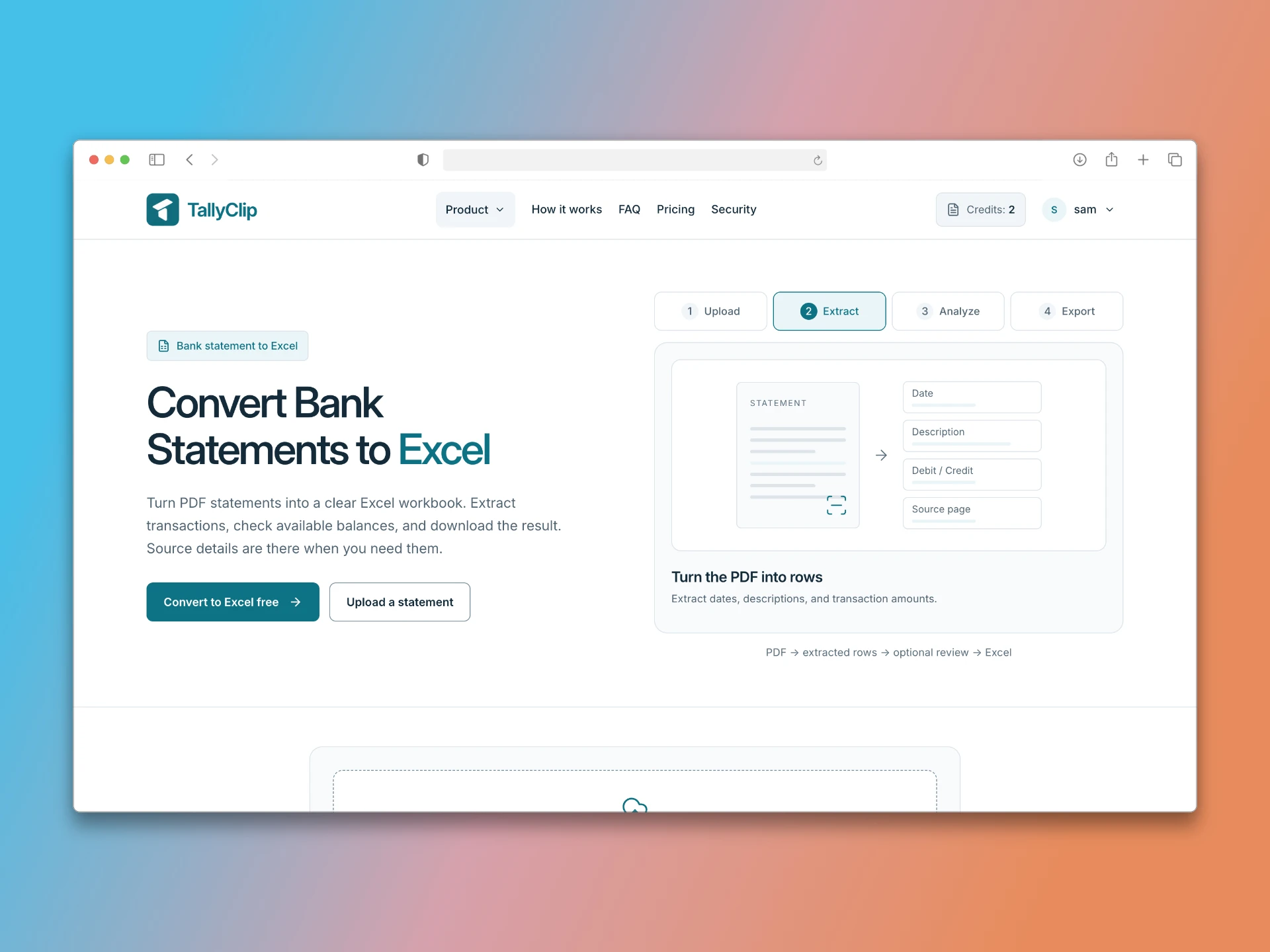
You have converted your PDF bank statement. Now you need to decide: export to Excel (.xlsx) or CSV? The answer depends on what you plan to do with the data.
Both formats contain the same transaction rows, but they behave differently in practice. Excel is a rich, formatted workbook. CSV is a plain-text file. Choosing the wrong one can create unnecessary work downstream.
Comparison at a glance
Dimension Excel (.xlsx) CSV Viewing Formatted, multi-sheet, easy to read Plain text, needs a spreadsheet to view comfortably Analysis Supports formulas, pivot tables, charts No native analysis; must be opened in a spreadsheet Sharing Larger file size; may carry hidden metadata Small file; universally compatible Importing into accounting software Often supported, but column mapping is manual Almost universally accepted; cleanest import path Data integrity risk Excel may auto-convert dates, strip zeros, apply number formats Minimal risk if the CSV is correctly generated Balance verification Easy to add formulas and checks Requires manual calculation or a separate script When to choose Excel
Excel is the right choice when you need to work with the data visually or perform analysis in the spreadsheet itself.
You want to sort and filter transactions by merchant, date range, or amount.
You need to categorise transactions and build a pivot table to summarise spending.
You are preparing a reconciliation sheet with formulas that compare bank balances to ledger balances.
You want to share a formatted report with a colleague who will review it in Excel.
Excel’s strength is interactivity. If your goal is to understand the data, Excel is the better tool.
When to choose CSV
CSV is the right choice when the data is heading into another system.
You are importing transactions into QuickBooks, Xero, Sage, or Zoho Books.
You are feeding the data into a database or a scripting pipeline.
You need to share the file with someone whose software may not be Excel-compatible.
You want to minimise the risk of Excel silently altering your data.
CSV is the safer transport format. It does not carry formatting, formulas, or hidden columns. What you see in the file is exactly what gets imported.
A practical hybrid approach
Many finance professionals use both formats in sequence:
Convert the PDF to Excel for initial review and cleanup.
Inspect the parsed data — check dates, signs, and row counts.
Export the cleaned data to CSV for import into the accounting system.
TallyClip supports both output formats from the same conversion, so you can generate an XLSX for review and a CSV for import without re-uploading the PDF.
The hidden risk of Excel
Excel has a well-documented tendency to auto-format data on import. Transaction IDs that look like dates (e.g., 20250315) may be converted to dates. Account numbers with leading zeros lose those zeros. Long numeric strings may be converted to scientific notation. These changes happen silently and can corrupt your data without warning.
CSV avoids most of these issues because the file itself contains raw text. However, Excel may still apply auto-formatting when you open a CSV — so if you are using CSV purely as a transport format, import it directly into your accounting software rather than opening it in Excel first.
Key takeaways
Choose Excel for visual review, analysis, and reconciliation work.
Choose CSV for importing into accounting software and for maximum compatibility.
A hybrid workflow — Excel for review, CSV for import — gives you the best of both.
TallyClip exports both formats from the same conversion, so there is no extra work.